One Template – Infinite Identities. Switch assets, colors, and vibes in minutes.
Tutorial: Unpeel Your Own Brand Identity with AI
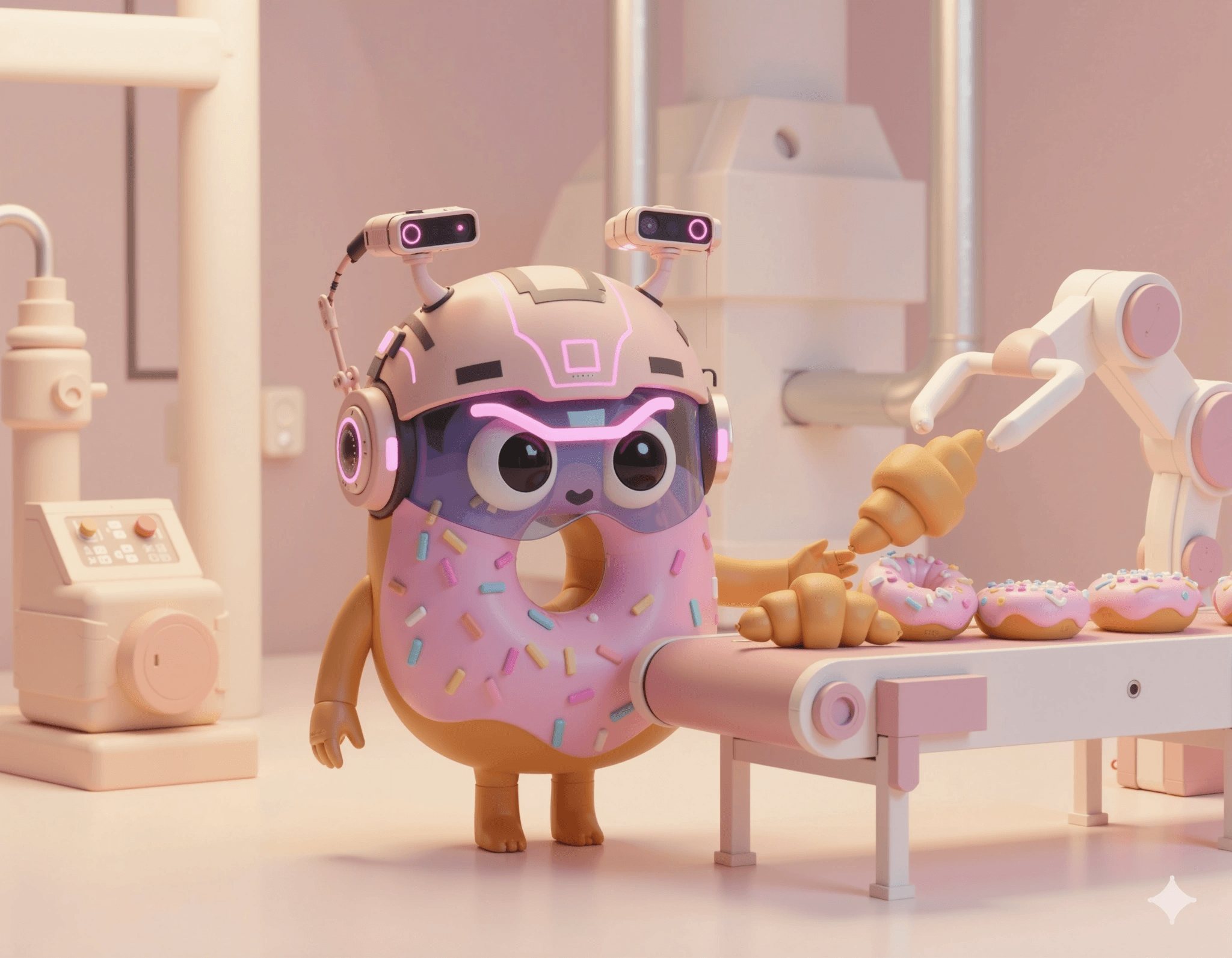
This means you can swap the "Potato" for any character (like a Donut, a Robot, or a Diamond) in minutes. Follow this guide to create a completely unique, high-end brand identity using AI.
You import the image into AI tools, e.g. dzine.ai or gemini, and enter the commands:
01
Generate Your New Hero Character
You don't need 3D skills—just a good prompt.
Open Dzine.ai (or Gemini/Midjourney).
Use this "Master Prompt" structure:
"Cute 3D character of a [YOUR OBJECT, e.g., PINK DONUT] with robotic headphones, standing on a minimalist tech platform, soft studio lighting, high-quality octane render, pastel colors, 4k, isolated on simple background."
Download your favorite result.
02
Clean and Prep
To make the character sit perfectly in the Framer layout, it needs a transparent background.
Use the "Remove Background" tool directly inside Dzine.ai.
Export the result as a PNG.
03
Swap and Sync in Framer
Open your template in Framer.
Click on the current character image and select "Replace Image" to upload your new PNG.
Color Sync: Use the Color Picker to change the template’s accent colors (buttons, glow effects, borders) to match your new character.
Update the Copy: Change the headlines to match the new "vibe" (e.g., from "Design with deeper roots" to "Sweeten your digital presence").
04
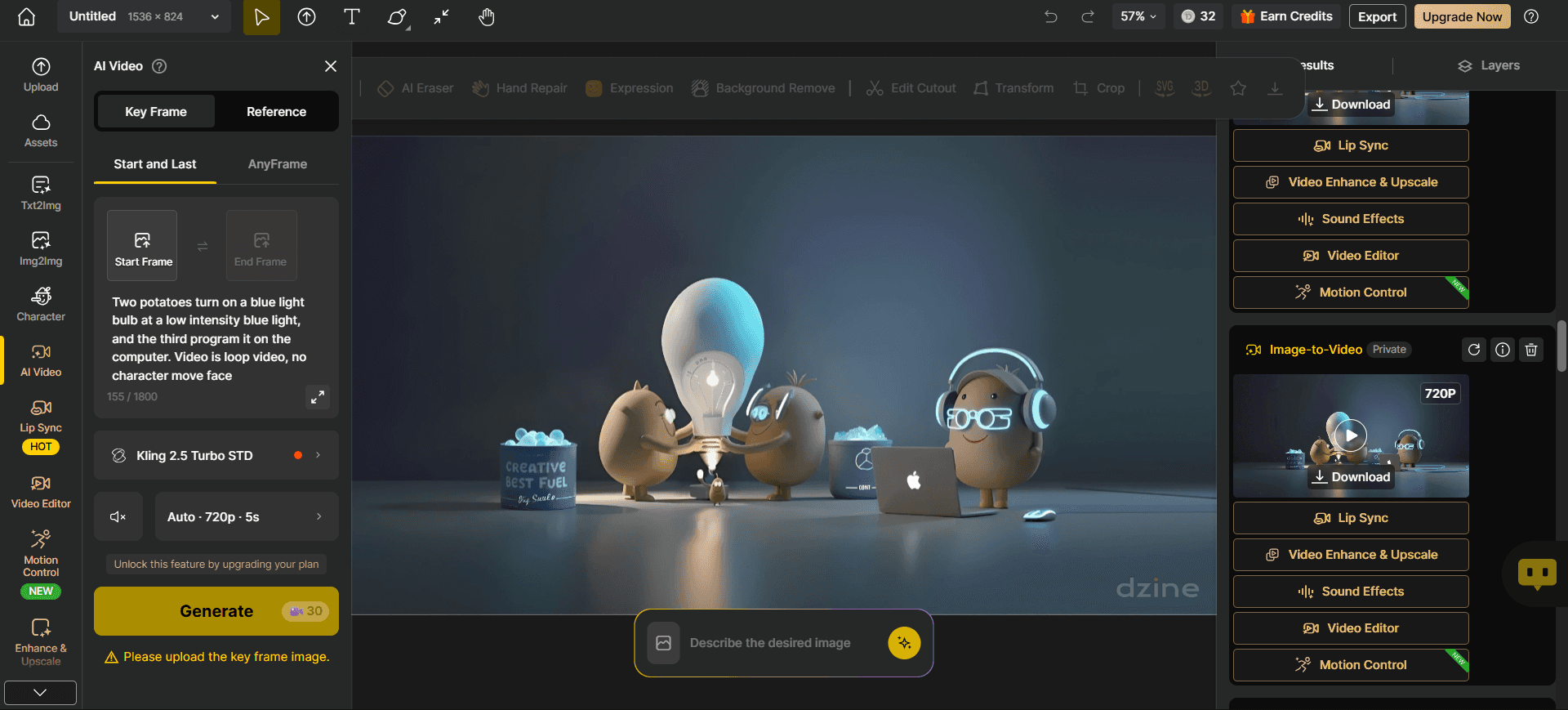
Create "Vibe" Animations with Dzine AI Video
To achieve the high-end cinematic feel seen in the demo, turn your static image into a high-quality video background.
Go to the Video/Animation tool in Dzine.ai.
Upload the character or background image you generated in Step 1.
Enter a Motion Prompt: Tell the AI how to move.
Example: "Subtle floating motion, neon lights flickering in the background, cinematic camera drift, high quality, 4k."
Generate & Export: Dzine will render a high-quality MP4 video.
In Framer: Replace the background video component with your new AI-generated "vibe" video.